iBEAM Tech Tips
Tech Tip: How to Switch Between Multiple Projects or Cameras
How to Switch Between Multiple Projects or Cameras
Many iBEAM users run multiple projects at the same time and have a construction camera on each project. Other users work on projects that are so large that multiple cameras or multiple angles are required to capture all the activity. Whichever scenario applies to you, this Tech Tip is for those users with multiple cameras or multiple views from a single PTZ camera.
Here we look at how you can switch between cameras or views on your camera web page. As always, these instructions assume that you are already logged in to your camera web page. Contact the iBEAM Support team if you need help logging in.
Some customers prefer to use a unique log in for each of their cameras, while others like the convenience of having all of their cameras accessible with one login. If you'd like to compile all of your cameras into one account, contact our support team and they'll get you taken care of.
Switching Between Cameras or Views
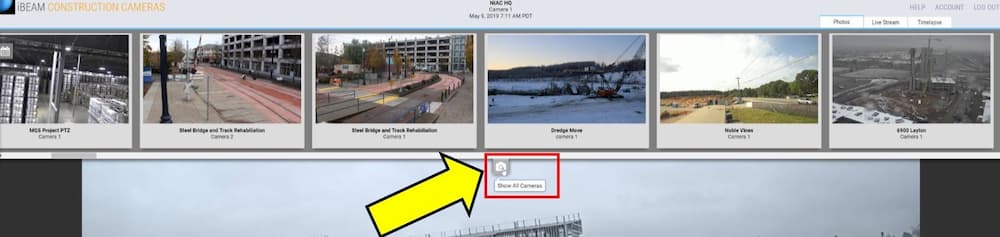
Step 1: Click the Show All Cameras icon at the top of your camera web page to view all cameras associated with your account (if multiple cameras are associated with your account).

Step 2: Use the slider feature to find the project you'd like to view, then click on the photo to access that construction camera.
That's it! Pretty simple, right?
Please share this helpful information with any relevant members of your team so they're fully informed regarding the features and functionality of their iBEAM Construction Camera.
If you have any questions about our construction camera solutions or are thinking about adding an additional camera to your project, contact our team here. We're more than happy to help!

iBEAM Systems, Inc. is a WBENC-Certified Women's Business Enterprise (WBE), serving the construction industry since 2001.