iBEAM Tech Tips
Tech Tip: Controlling Your PTZ Camera
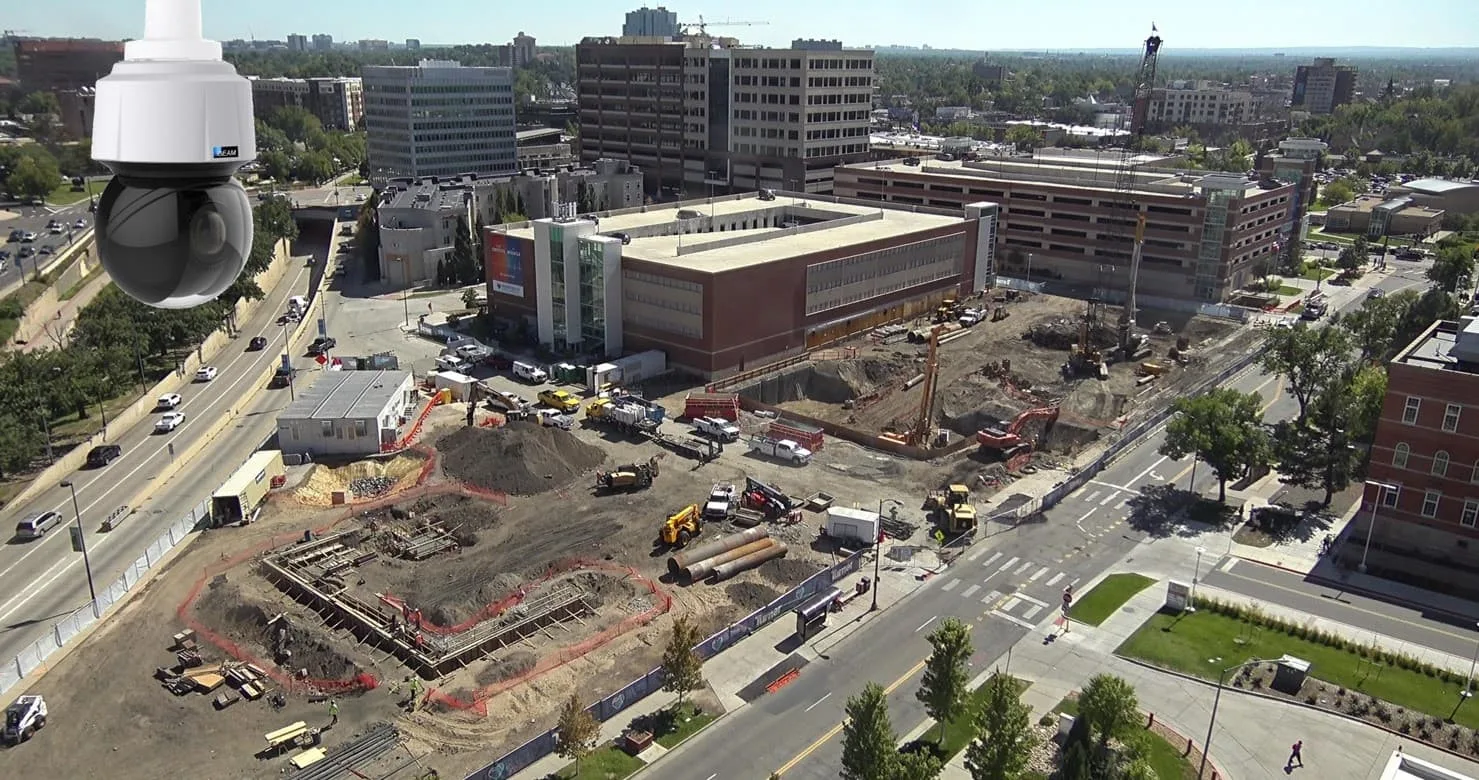
How to Control Your iBEAM PTZ 4K Construction Camera
One of the primary features of the iBEAM PTZ 4K Construction Camera is the ability for users to remotely pan, tilt, and zoom the camera to view exactly what they need to see on their jobsites. Let's take a look at how to use this feature to help you and your team get the most out of your iBEAM PTZ Construction Camera system.
Log in and Navigate to the "Live Stream" tab
First, open your iBEAM Camera Console web page and select the camera you'd like to view (if you have multiple cameras). Then click the "Live Stream" tab in the upper right-hand corner of the page to access the live video stream and user controls.
Note: Please ensure that any pop-up blockers are turned off; the live-stream video will open in a new window.
Using the Pan-Tilt-Zoom Features

Once the Live Stream window loads, you're ready to use the pan-tilt-zoom controls of your PTZ camera.
Click the Play icon to start the live video stream.
To pan and/or tilt the camera, simply click on the live video to reposition the camera. Click on the left side of the video to move your camera to the left. Click towards the bottom of the video to tilt your camera down. It's easy!

To zoom the camera in or out, slide the zoom control slider at the bottom of the live feed to the desired zoom amount and the camera will zoom accordingly.
Navigating Between Presets (if applicable)

If your PTZ construction camera is configured with multiple preset views, you can easily navigate between them:
- Locate the "Preset positions" drop-down menu at the lower left of the Live Stream window and click the down arrow
- Choose which preset position* you'd like to view from the list of available preset positions
- Watch as your PTZ camera automatically moves to the preset position you have selected
PLEASE NOTE: Your camera will automatically move to the programmed photo position(s) when scheduled — usually every 10 minutes. When this happens, please allow 10 seconds for the camera to capture the image(s) before manually moving or adjusting the camera again.
*If additional preset positions are desired for your project, please contact your iBEAM sales rep to discuss. You can set up new presets for either navigation purposes only or for viewing + image capture (additional fees may apply).
Have Questions About Your iBEAM PTZ Camera?
Now that you're up to speed on how to use your iBEAM PTZ 4K Construction Camera, it's time to put that knowledge to use!
If you or your team have any questions about your construction camera system that are not covered in the information above, please contact your iBEAM sales rep or the iBEAM Support Team for further assistance.
iBEAM Support:
support@ibeamsystems.com
800.403.0688 Opt 2
www.ibeamsystems.com/support.html

iBEAM Systems, Inc. is a WBENC-Certified Women's Business Enterprise (WBE), serving the construction industry since 2001.